The short version: install time.md, grant the local permissions needed for Screen Time and browser-history files, use your Mac normally, then open Export and choose Markdown or Obsidian. The result is a normal file on your Mac, not a cloud dashboard or an account-bound report.
What time.md tracks on Mac
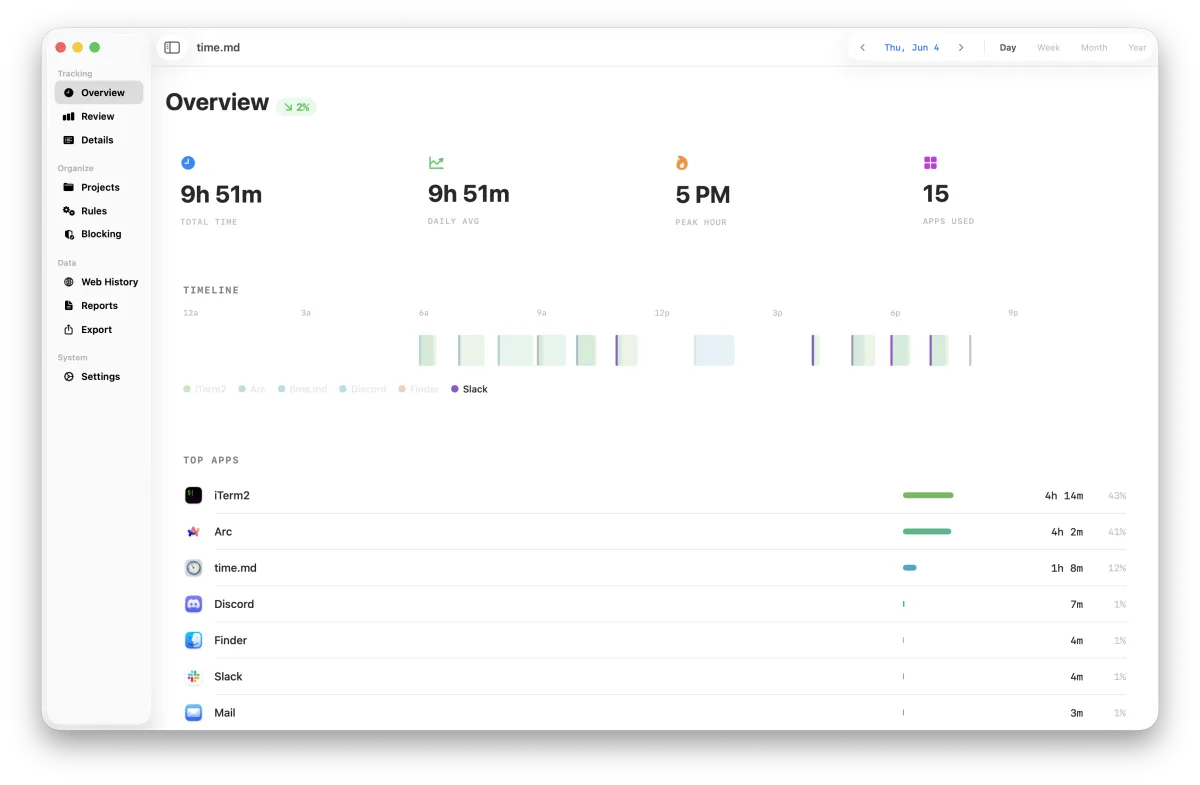
time.md is a macOS app for private Screen Time analytics. It answers questions Apple Screen Time usually leaves open: which apps took the day, when sessions happened, how usage changed across a week, which categories matter, and what you can export for your own review.
Foreground sessions
Use the app to review app totals, sessions, trends, category mappings, context switches, and detailed timelines for the date range you choose.
Local web history
When permissions and browser files allow it, time.md reads local history from Safari, Chrome, Firefox, Arc, Brave, and Edge to show pages, domains, and visit patterns.
SQLite and snapshots
Product data lives under your user account, with the main app database and readable snapshots stored locally on your Mac.
Input tracking
Keyboard and cursor analytics are separate, opt-in features. You do not need them for normal Screen Time or Markdown exports.
For this article, the useful split is app time versus web history. App usage tells you that Safari, Chrome, Xcode, Terminal, or Slack was active. Web History adds page and domain context inside browsers when those local databases are available.
Set up permissions without over-granting
macOS protects the local files that make detailed time tracking useful. time.md does not bypass those protections; you choose which access to grant.
-
Install and open time.md
Move the app to
/Applicationsif you want macOS permissions to attach to the copy you will keep using. -
Grant Full Disk Access
Open System Settings → Privacy & Security → Full Disk Access, add
/Applications/time.md.app, turn it on, then quit and reopen time.md. This is the permission that lets time.md read protected local Screen Time and browser-history files. -
Skip optional input permissions unless you need them
Accessibility and Input Monitoring are relevant to optional input tracking, not the standard dashboard or export path.
-
Keep entitlement traffic separate from activity data
Trial, license, and update checks may use the network, but Screen Time sessions, browser visits, exports, categories, and input rows are not sent to time.md entitlement servers.
Privacy boundary: Full Disk Access is broad because macOS grants it broadly. In time.md, it is used for local file reads such as Screen Time and browser history. It is not an instruction to upload those files.
Review app usage and browser context before exporting
Before saving anything as Markdown, decide what the file needs to answer. A daily note might need only top apps and categories. A weekly review might need trends, heatmaps, and sessions. A distraction audit might need browser-history domains.
Start broad
Use Overview and Review to see total time, daily averages, charts, and category breakdowns.
Check sessions
Use Details when you need exact session boundaries, top transitions, app filters, or timeline pagination.
Add domains
Use Web History to see what happened inside browsers instead of only which browser was foreground.
Save Mac Screen Time as Markdown
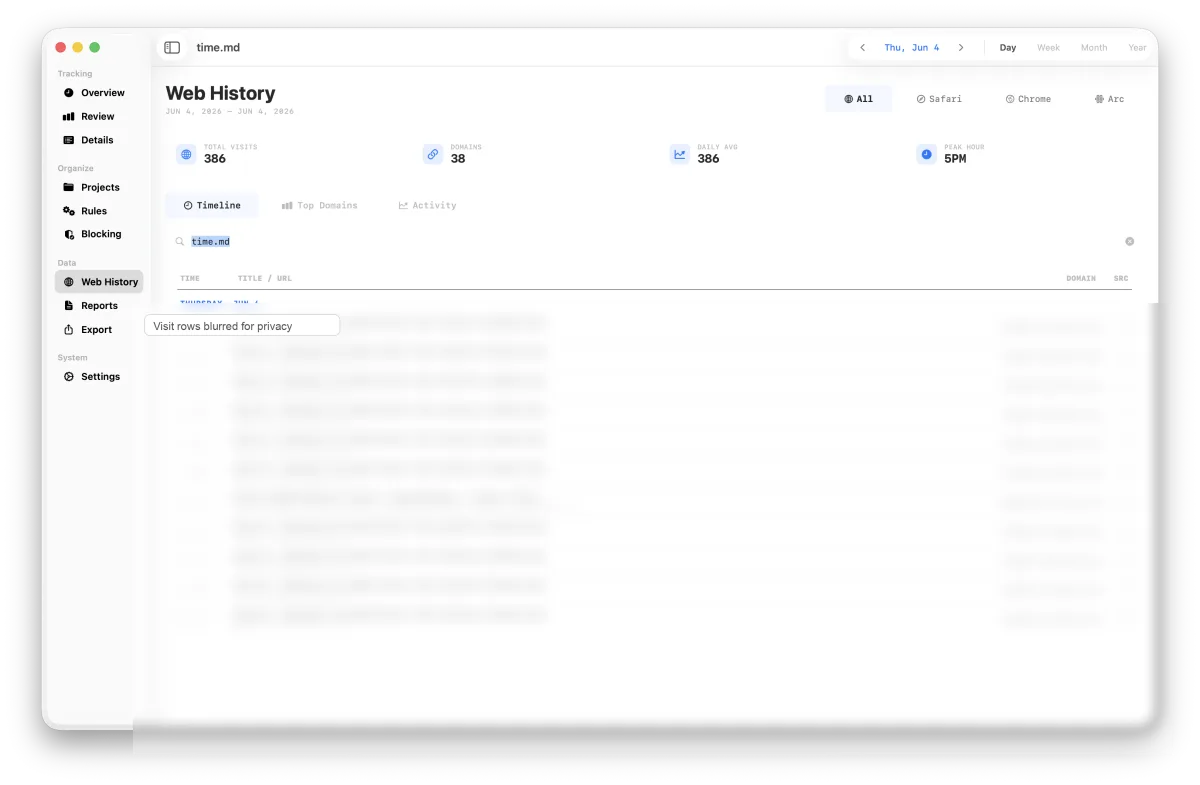
The Export screen turns your filtered time.md data into portable files. Choose a date range, pick the sections you want, select Markdown, then write the file to a folder you control.
-
Open Export
Use the Export screen when you are ready to create a report from local analytics.
-
Choose the scope
Select a date range such as today, yesterday, last 7 days, this week, or this month. Add app, category, or browser-history filters when you want a narrower file.
-
Pick sections
General exports are compact. Extensive exports include more of the available report model. Custom exports let you choose exactly which sections belong in the file.
-
Select Markdown
Markdown exports can include headings, tables, metadata, and formatting options that work in plain text editors, GitHub, documentation folders, and notes apps.
-
Review before sharing
Exports can reveal detailed behavior, especially raw sessions and browser-history sections. Read the generated file before emailing it, committing it, or placing it in a synced folder.
A Markdown export can look like this:
---
title: "time.md Data Export"
date: 2026-06-13
type: screentime-export
tags:
  - timemd
  - screentime
---

# time.md Data Export

| Property | Value |
|----------|-------|
| Generated | [[2026-06-13]] |
| Date Range | [[2026-06-06]] → [[2026-06-13]] |

## Top Apps

| app_name | total_seconds | session_count |
|----------|---------------|---------------|
| [[Apps/Safari|Safari]] | 7200.000 | 45 |
| [[Apps/Xcode|Xcode]] | 5400.000 | 23 |

## Related

- Daily Note: [[2026-06-13]]
- Top Apps:
  - [[Apps/Safari|Safari]]
  - [[Apps/Xcode|Xcode]]
Build an Obsidian-friendly routine
If you use Obsidian, a one-off export is less useful than a repeatable local review habit.
Drop reports into the vault
Export into a folder such as Time/ or Reviews/, then link the report from your daily note.
Keep metadata queryable
Obsidian mode can add YAML or TOML frontmatter, tags, and Dataview-style fields for later search.
Connect app names
Use app-note folders and wiki links such as [[Apps/Xcode|Xcode]] when you want usage notes to connect over time.
Keep a live snapshot
time.md can refresh a formatted auto-export file in your chosen destination using your selected filename and export settings.
The default export destination is ~/Downloads/time.md Exports/, but a custom folder makes more sense for Obsidian. Choose a vault folder once, then reuse the same preset for weekly or monthly reviews.
Use CSV, JSON, or YAML when Markdown is not enough
Markdown works well for review, but it is not always the best interchange format. time.md also supports CSV, JSON, and YAML when you want formulas, scripts, or structured archives.
| Format | Use it for | Tradeoff |
|---|---|---|
| Markdown | Readable notes, GitHub docs, weekly reviews, and personal journals. | Great for humans; less strict for downstream scripts. |
| Obsidian | Markdown vaults with frontmatter, tags, backlinks, daily notes, and app links. | Best if your knowledge base already uses Obsidian conventions. |
| CSV | Spreadsheets, pivot tables, client summaries, and quick charts. | Flat tables are simple but less expressive for nested sections. |
| JSON | Scripts, local dashboards, automation, and structured archives. | Excellent for machines; noisier to read by hand. |
| YAML | Readable structured records and config-like archives. | More readable than JSON, but indentation-sensitive. |
Privacy notes before you make exports a habit
Local files can still expose sensitive behavior. Treat screen-time reports like private notes unless you prepared them for sharing.
- Screen Time sessions, browser visits, export files, category mappings, and optional input data stay on your Mac unless you share, sync, or upload them yourself.
- Private or incognito browser windows usually do not write normal local history, so time.md cannot show visits that the browser never saved.
- If you clear browser history before time.md reads it, those visits may not be available unless they were already persisted in time.md’s local web-history archive.
- Input Tracking is optional and separate. Do not include raw input sections in exports unless you understand exactly what they contain.
- Trial, license, and update network calls do not include your Screen Time database, browser history, export contents, categories, or local SQL query results.
time.md is documented here as a macOS direct-distribution app. This guide focuses on its local files, permissions, and exports rather than store-specific release channels.
Next steps
A simple starting routine: create one weekly Obsidian export with Summary, Apps, Categories, Trends, Sessions, and Web History sections. After two or three weeks, you will have a searchable private archive of where your Mac hours went.